
Edit video in your browser without uploading footage
You can edit video in your browser without uploading your footage. AlcorVideo is a free multi-track editor that imports clips from your computer, cuts them on a timeline and renders the finished video on your own device. There is no account, and the editor page blocks outgoing data connections.
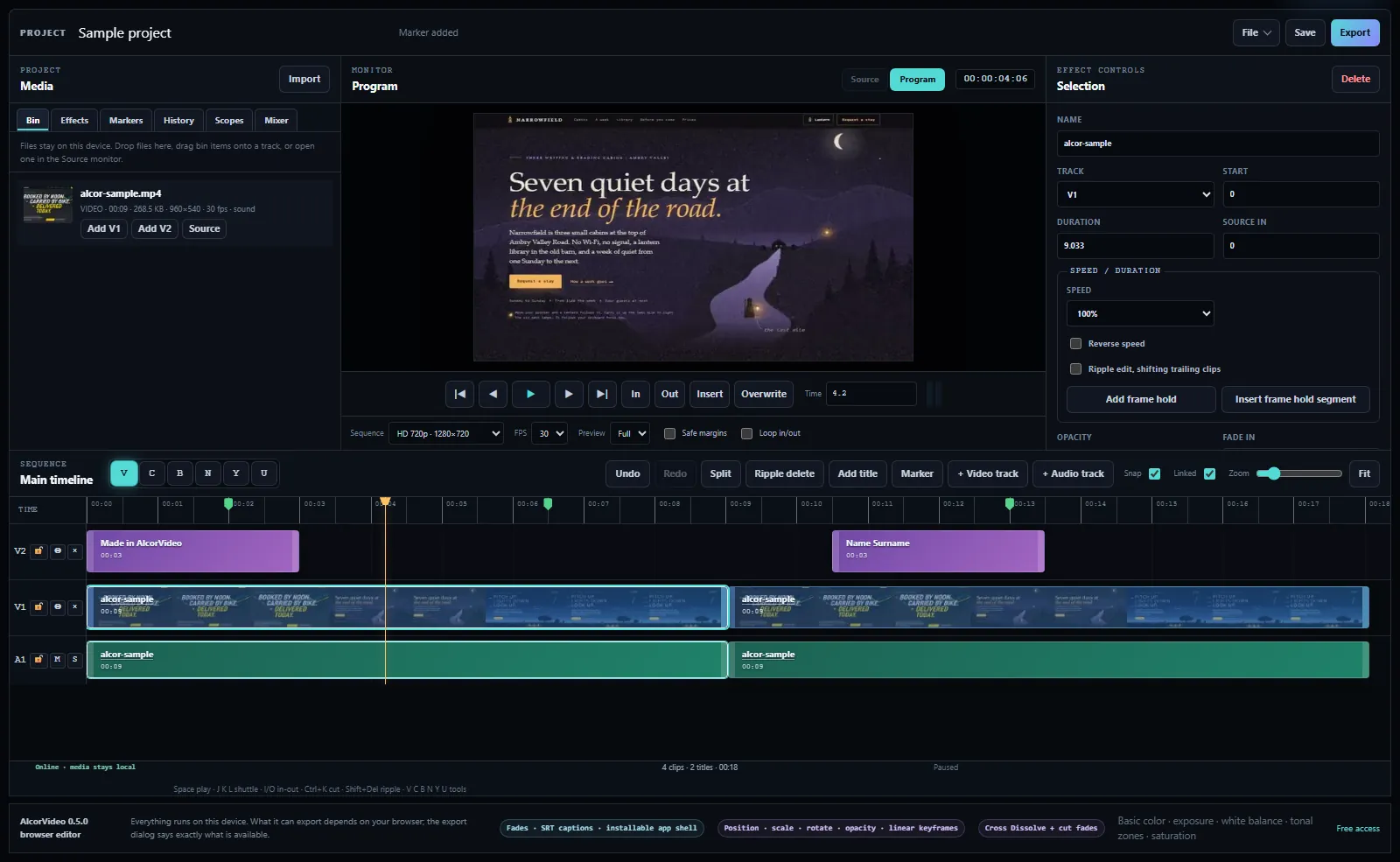
How to edit a video in AlcorVideo
- Bring in your media. Open /video/, then press Import in the Media panel, or drop video, audio and image files onto the Media panel or the Program monitor. Files stay on your device. To look around first, choose File → Open the sample project.
- Put clips on the timeline. Drag items from the Bin onto a track. Or open a clip in the Source monitor, mark it with In and Out, and press Insert or Overwrite at the playhead.
- Cut. Press Space to play, park the playhead and press Split (Ctrl+K). It cuts the selected clips at the playhead, or every unlocked track when nothing is selected. The Razor tool (C) cuts where you click, and Ripple delete (Shift+Delete) removes a clip and closes the gap. The Ripple, Rolling, Slip and Slide tools (B, N, Y and U) are in the tool strip for finer trims.
- Add titles and transitions. In the Effects tab, choose a Title, Lower third, Subtitle or End card, or press Add title on the timeline toolbar. To blend two clips, select the incoming clip at the cut and choose Cross Dissolve, Dip to Black, Dip to White or one of four wipes.
- Adjust picture and sound. Select a clip to use Effect Controls: speed, opacity, volume, gain and pan, plus color with curves and .cube LUTs. The Scopes tab shows a luma waveform, vectorscope and histogram. The Mixer tab sets level and pan for each audio track.
- Export. Press Export (Ctrl+M). In the Export video dialog, choose a Preset, Format, Quality and Range, then press Export. When it finishes, choose Save rendered video.
- Save the project. Press Save (Ctrl+S) to download a .alcorvideo file with your edits and the linked media. Reopen it later with File → Open project.
What AlcorVideo does well
- A real timeline. Up to 12 video and 12 audio tracks, with lock, mute and solo, linked audio, snapping, markers, and in and out points.
- Motion and speed. Position, scale, rotation and opacity keyframes with linear, eased or hold interpolation, plus speed changes, reverse and frame holds.
- Titles and captions. Title presets with font, color, outline and background, and import and export of SRT captions.
- Export presets. Sizes for 1080p, 4K, vertical and square video, rendered on your device.
- Keyboard shortcuts. J, K and L shuttle through footage, I and O mark in and out, and M adds a marker. File → Keyboard shortcuts opens the full list.
Limits
- Not a full professional suite. There is no multicam, nested sequences, masks, plugins or team features.
- Export depends on your browser. MP4 with H.264 video and AAC audio needs WebCodecs, which current Chrome and Edge have. Otherwise the editor records WebM in real time, and you need to keep the tab visible while it plays through. The export dialog tells you which applies before it starts.
- Letterboxing. A preset with a different shape from your sequence is letterboxed. To fill a vertical or square frame, set the Sequence menu to that shape first.
- Import size. A file over 2 GB is refused.
- No cloud backup. Nothing is saved for you online, so save the project before you close the editor. File → Keep a recovery copy can store a copy in your browser, but it is off by default.
- Rights. You still need the rights to any footage, music or images you use.
Common questions
Does AlcorVideo upload my video?
No. Import, preview and export all happen in your browser, and the editor page blocks outgoing data connections. A saved project downloads to your computer, and it is not uploaded either.
What can I export?
MP4 or WebM at 720p, 1080p, 4K, vertical or square sizes. The Format menu in the Export video dialog also lists an animated GIF of up to 15 seconds, a PNG still, image sequences, audio-only WAV and SRT or WebVTT captions. What your browser can produce varies, and the dialog says exactly what is available.
Is AlcorVideo free for business use?
Yes. The web editor is free for personal and business use, with no account. Hosting, deployment, customization and support are separate services quoted on request. The platform page lists all of the free apps.
Open AlcorVideo and load the sample project to see the timeline, or read more on the AlcorVideo page. The Media panel accepts video, audio and still images, so a title card made in AlcorPhoto can go in the same bin. Businesses can have AlcorVideo installed or customized on a written quote: ask for one here.