
Sketch a song on a piano roll and export MIDI or WAV
To sketch a song on a piano roll in your browser, open AlcorMusic, tap notes into the grid, give each part a sound and press Play. When the idea is down, export MIDI for your music software, MusicXML for notation software, or a stereo WAV. It is free, there is no account, and your notes stay on your device.
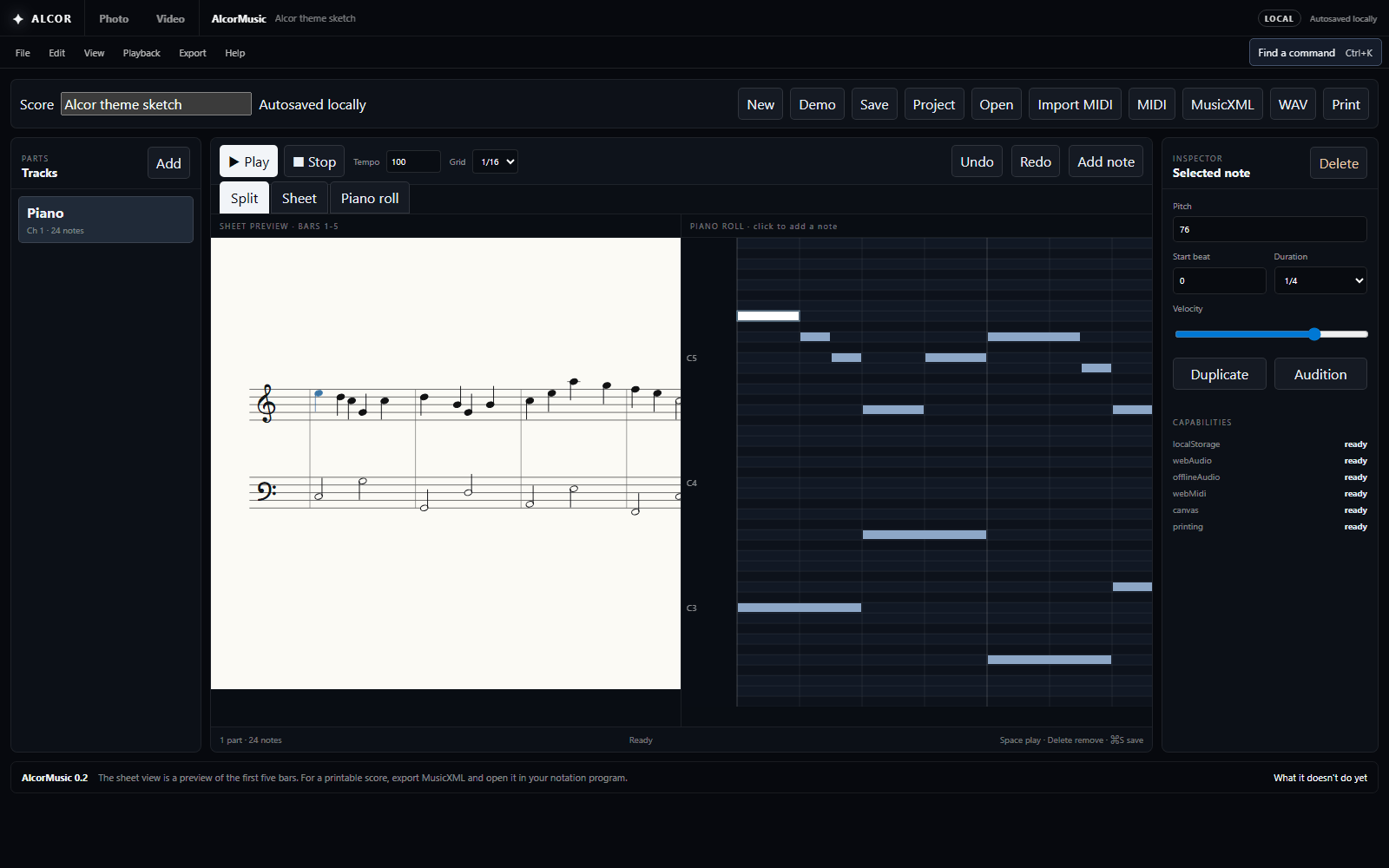
How to sketch a song on a piano roll
- Start a score. Open /music/. Press Demo to load an example, or New for a blank score. Name it in the Score field.
- Set tempo and grid. Tempo runs from 30 to 260 beats per minute and starts at 120. The Grid menu snaps notes to 1/4, 1/8 or 1/16.
- Choose a sound. The Sound menu sets the voice for the selected part: piano, electric piano, vibes, organ, pluck guitar, bass, pad or lead. Press + Part to add another instrument part.
- Add notes. Tap or click the piano roll to add a note, drag it to move it, and pull its right edge to change its length. The Selected note panel sets Pitch, Start beat, Duration and Velocity, and has Duplicate and Audition buttons. The Delete key removes a note.
- Add drums. Press + Drums for a drum part, which uses a step grid instead of the piano roll. Try a beat fills in a starter pattern.
- Listen. Press Play, or Space. Turn on Loop to repeat the piece and Metronome for a click. The Sheet tab shows the same notes on a treble and bass staff, and Split shows the sheet beside the piano roll.
- Export. Press MIDI, MusicXML or WAV to download a file. Print prints the sheet view. Project downloads a project file you can reopen later with Open, and Import MIDI starts a score from a .mid file.
What each export is for
- MIDI is for your music software. The file names a matching General MIDI instrument for each part, so your software can swap in its own sounds. Drum parts go in on channel 10.
- MusicXML is for notation software. Export it when you want a printable part, then open it in your notation program.
- WAV is for sending the sketch to someone. It is a 44.1 kHz, 16-bit stereo file rendered in your browser tab, with every part mixed into one file.
What AlcorMusic does well
- One tab, no setup. Everything happens in one browser tab: write the notes, listen, read the sheet and export. There is nothing to install.
- Several parts. Each part has its own sound, and you can have up to 32 parts, including drums.
- Notes you can read. The sheet view draws the notes on a staff so you can see the shape of the line while you write.
- Private by default. Your notes stay on your device, and the sketch autosaves in your browser.
Limits
- Built-in sounds only. The eight voices and the drum kit are synthesized in your browser. There are no recorded instrument samples.
- WAV is a full mix. There are no separate stems. Use the MIDI export if you want to mix the parts yourself. WAV rendering also stops at 5,000 notes or 10 minutes.
- The sheet view is a preview. It shows the first five bars and does not draw rests, flags, beams or ties. It leaves out drum parts, and so does the MusicXML export.
- MIDI import is simple. It brings in the notes, the first tempo, the time signature and each channel’s first instrument. Each channel becomes one part, and channel 10 becomes a drum part. Later tempo changes, pedal and controller data are skipped.
- Saved in this browser. Clearing site data clears the sketch too, so download the project file for anything you want to keep.
- No desktop version. AlcorMusic runs in the browser, and there is nothing to download.
Common questions
Can I use the MIDI file in my music software?
Yes. The MIDI export is meant for that. Each part is tagged with a matching General MIDI instrument, so your software can swap in its own sounds.
Can I import a MIDI file and keep editing it?
Yes. Press Import MIDI and choose a .mid file. The notes come in on the piano roll, one part per MIDI channel. Expect the simplifications listed above, such as skipped pedal and controller data.
Can I print the score?
Print prints the sheet view, which covers the first five bars. For a full printable part, export MusicXML and open it in your notation program.
Open AlcorMusic and press Demo to see a sketch, or read more on the AlcorMusic page. A WAV from the sketchpad can also go into AlcorVideo as audio, and the platform page lists the other free apps. Businesses can have AlcorMusic installed or customized on a written quote: ask for one here.