
How to open a PSD file without Photoshop
You can open a PSD file without Photoshop, right in your browser. AlcorPhoto reads the file on your device, brings in each layer as its own layer when it can, and falls back to the flattened picture saved inside the file when it cannot. It is free, there is no account, and the file is never uploaded.
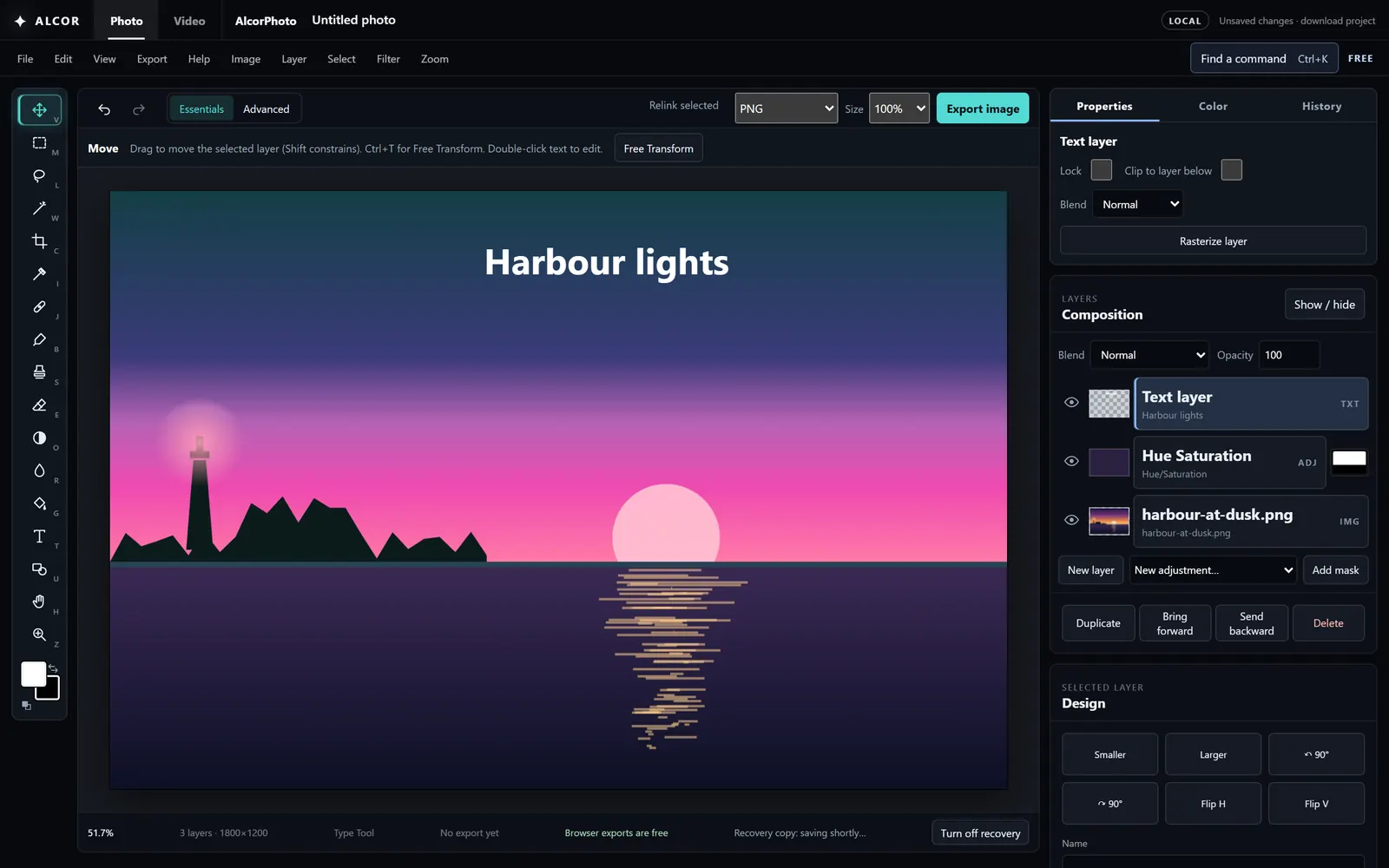
How to open a PSD in AlcorPhoto
- Open the editor. Go to /photo/.
- Import the file. Choose File → Import image and pick your .psd file. A .psb file is accepted too. The file stays on your device, and it can be up to 256 MB.
- Read the message. After the import, the editor tells you how the file came in: how many layers were imported, or that the flattened composite was imported instead.
- Check the Layers panel. Each layer keeps its name, position, opacity, visibility and clipping, and its blend mode where AlcorPhoto offers the same one.
- Edit, then export or save. Work as you would on any other project, then press Export image, or use File → Download project to keep an editable .alcorphoto file.
If you already have unsaved work open, the editor asks before it replaces the project with the layers from the PSD.
What comes across, and what does not
- Layers. Every layer that has pixels becomes a layer in AlcorPhoto. Group folders carry no pixels, so they are dropped, and the layers inside them are kept.
- Pixels, not live objects. Layers open as pixels. Text and shapes from the file arrive as pixels, so you cannot retype the wording afterward.
- Layer masks. Masks are applied to the pixels. The message after the import says how many were applied.
- Effects and adjustment layers. These are not imported, and the same message says so.
When a PSD opens as one flat picture
If AlcorPhoto cannot read the layers, it imports the flattened composite stored in the file instead, and it tells you that layers inside the PSD were not imported. The layered read handles 8-bit RGB files whose layer data is stored raw or with RLE (PackBits) compression. It cannot read ZIP-compressed layer data, and it needs RGB rather than CMYK or another color mode. If you need the layers, ask for an 8-bit RGB copy, or re-save the file yourself in the program that made it, and import it again.
The flattened picture is more forgiving. It accepts 8-bit and 16-bit RGB and Grayscale files with raw or PackBits compression. A few files are refused outright, with a message that tells you what to change:
- CMYK, Bitmap, Indexed, Multichannel, Duotone and Lab files are not supported. Convert the document to RGB before importing.
- Files with ZIP-compressed image data are not supported. Re-save the file with Maximize Compatibility turned on.
- Files that are not 8-bit or 16-bit are refused.
- Files over 256 MB are refused, and so are canvases that are too large.
Saving back to PSD
AlcorPhoto can write a layered file too. In the export menu beside Export image, choose the layered PSD option and every layer is saved as pixels. The menu also has an OpenRaster option for Krita and GIMP. For a flat file, choose PNG, JPEG, WebP or another format from the same menu.
Limits
- PSD layers open and save as pixels, so live text, shape and adjustment layers do not survive the round trip.
- The editor has no camera RAW, CMYK or 16-bit editing. A 16-bit PSD opens as a single flattened picture.
- Exports are limited to 36 megapixels, or 24 on phones and low-memory devices.
- AlcorPhoto runs in the browser. There is no download or offline edition today.
Common questions
Can I open a PSD on a computer that does not have Photoshop installed?
Yes. AlcorPhoto runs in the browser, so all you need is the file and a modern browser. Nothing is installed, and no account is needed. It is one of the free browser apps on the platform page.
Is it safe to open a client’s PSD in a web editor?
The file is read inside your browser tab and is not uploaded. The editor page is set up so that it cannot open network connections, and it loads no analytics.
Why did my PSD open as a single layer?
The layered read failed, so AlcorPhoto used the flattened composite stored in the file, and the message after the import says that layers were not imported. The section above lists what the layered read needs.
Open AlcorPhoto and import your PSD, or read about the editor’s other tools on the AlcorPhoto page. Businesses can have AlcorPhoto installed or customized on a written quote: ask for one here.