
Translate a conversation between two people in your browser
To translate a conversation between two people, open AlcorTranslate in a current version of Chrome, Edge, Firefox or Safari, let each person pick a language, and take turns typing or speaking. Each person reads the other’s words in their own language. Translation runs on your device: Chrome and Edge use the translator built into the browser, and other browsers run Mozilla’s open-source translation engine inside the page. There is no account, and typed text never leaves your device.
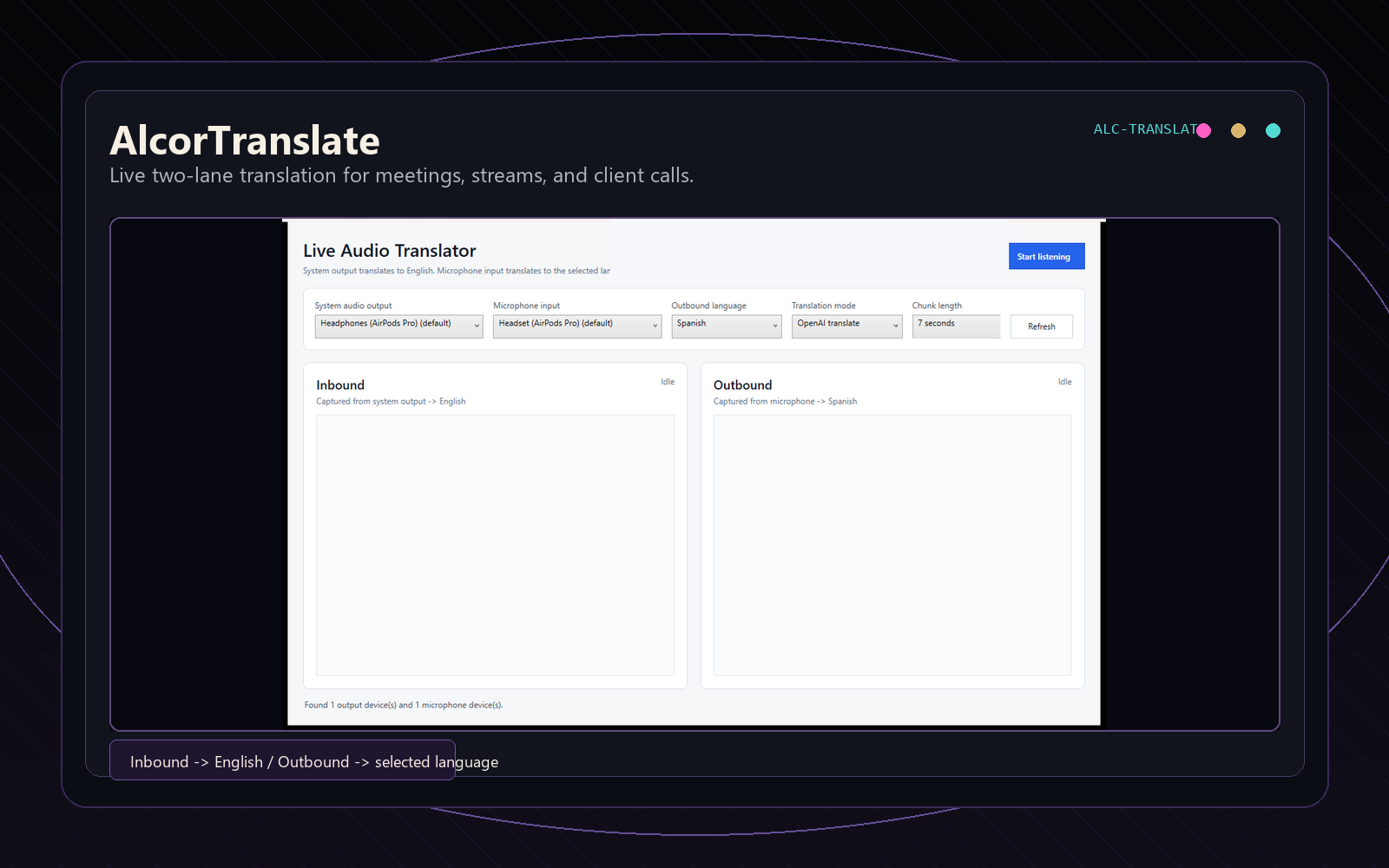
How to translate a conversation
- Open it in your browser. Use a current version of Chrome, Edge, Firefox or Safari on a computer, tablet or phone and go to /translate/. There is nothing to install.
- Pick two languages. Person A and Person B each have a language menu, and the page starts with English and Spanish. If your browser can detect languages, a Detect from what they type option is there too. A line under Conversation says whether the pair is ready. The first time you use a pair, your browser downloads the language files for it, and the page shows how far along it is. They’re kept for next time.
- Type, or speak. Type in your half of the screen and press Enter or Translate. Or press Speak and talk. The other half shows the translation. Tick Read aloud on a side to hear the translations that arrive there.
- Take turns. Put the laptop between you. Short sentences translate better than long ones. Swap sides switches which person is on which half of the screen.
- Keep a copy if you need one. The Transcript lists every message in both languages. Copy puts it on the clipboard, and Download .txt saves a text file. Clear removes the conversation.
What AlcorTranslate does well
- One screen for two people. Each side has its own language, its own text box and its own Speak button.
- On-device typed translation. Typed text is translated on your device, by the browser’s built-in translator or by the in-page engine, not by a server.
- A transcript with both languages. Every message appears in both languages, and you can copy it or download it as a text file.
- Plain error messages. It says plainly if a particular language pair cannot be translated.
Privacy: what happens to what you type and say
- Typing. Translation runs on your device. AlcorTranslate does not send typed text anywhere for translation, and it does not save the conversation. Clear it or close the tab and it is gone. The only thing it remembers is the two languages you picked, in this browser.
- Speaking. When you press Speak, your browser turns speech into text, and it may send the audio to its maker: Google for Chrome, Microsoft for Edge, Apple for Safari. If the browser can do it on your device for your language, AlcorTranslate asks it to.
- Listening. Read aloud uses your device’s voices. Some voices are online and send the text out to be spoken, so AlcorTranslate picks an on-device voice when there is one.
- To avoid both services, type, and leave Read aloud off.
Limits
- A current browser. It works in current versions of Chrome, Edge, Firefox and Safari. Chrome and Edge use their built-in translator; the others run Mozilla’s open-source engine in the page.
- A connection for the first use of each pair. The language files for each new pair download once. In browsers without a built-in translator they come from this site; only the files are fetched, and your text is never sent.
- Machine translation. It gets things wrong sometimes. For anything medical, legal or about money, have someone who speaks both languages check it.
- One screen, not a call. It does not join calls or caption video. It is built for two people sharing one screen.
- Message length. Each message can be up to 2,000 characters, and a very long one may need to be split up.
Common questions
Does it work on a phone, in Firefox or in Safari?
Yes. It works in current Chrome, Edge, Firefox and Safari. Chrome and Edge use the browser’s built-in translator; other browsers run Mozilla’s open-source translation engine inside the page, after a one-time download of the language files for each pair.
Is my conversation sent anywhere?
Typed text is translated on your device, and the conversation is not saved. Speech recognition and online voices are the exceptions, because they may send audio or text to the browser provider. Typing with Read aloud off avoids both.
Can I use it to translate a video call?
No. It is a conversation between two people at one screen, not a call or captioning tool.
Open AlcorTranslate and hand over the keyboard, or read more on the AlcorTranslate page. The other free apps are listed on the platform page. Businesses can have AlcorTranslate installed or customized on a written quote: ask for one here.