Make a QR code with your logo in the middle
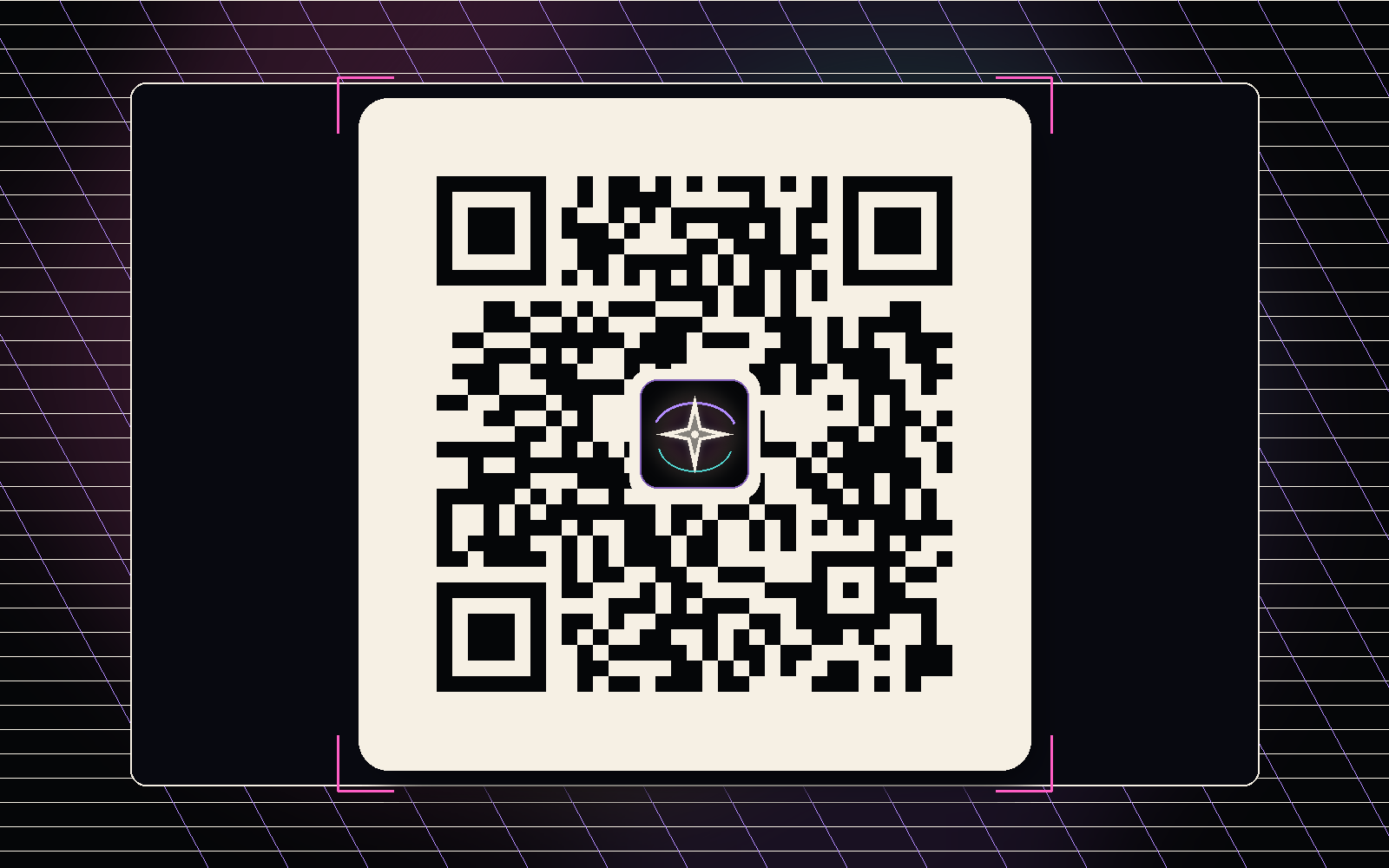
To make a QR code with your logo in the middle, type your link into AlcorQR, choose your logo as the center mark and keep it small. When you add a logo, the editor turns on its strongest error correction so the code still scans with part of it covered, and it limits the logo to a fifth of the code’s width. It is free, it runs in your browser, and the link and the logo are not sent to us.
How to put a logo in a QR code
- Enter what the code should open. Open /qr/ and type a link or text under Destination or text. It holds up to 1,200 bytes, and a counter shows how much you have used.
- Choose colors. Set Modules (the dots), Background, Finder eyes (the three corner squares) and Center backdrop separately. The Palette readout shows the contrast ratio for the dots and for the corner squares.
- Pick a dot style. Module style offers Square, Rounded and Dots. The three corner squares keep their standard shape so phones can still find them.
- Add the logo. Under Center image or SVG, press Choose mark or drop a file on the box. PNG, JPEG, WebP and SVG files are accepted, up to 2 MB. SVG files are cleaned first: scripts, links to other sites and embedded content are removed before the image is drawn.
- Size the logo. Center-mark size runs from 8% to 20% of the code’s width. Rounded center backdrop rounds the patch behind the logo. Error correction locks to its highest level while a logo is in place.
- Export. Choose an Output size of 512, 1024, 2048 or 4096 pixels and press Export PNG, or press Export SVG for a vector file with your logo embedded.
What AlcorQR does well
- Separate colors. The dots, background, corner squares and the patch behind the logo each get their own color.
- Two output types. PNG from 512 to 4,096 pixels wide, or an SVG with sharp vector dots and your logo embedded in the file.
- A safe border. The blank border around the code never gets thinner than scanners expect, even when you change the spacing or the export size. The minimum is 4 modules.
- Local drawing. The code is drawn on your device. There is no account to create and nothing to buy.
Check that it scans before you print
- Contrast. AlcorQR blocks export when the dots or the corner squares fall below a 3:1 contrast ratio against the background. It flags anything under 4.5:1 as below its reliability target.
- Logo size. The logo can cover at most 20% of the code’s width. The slider starts at 16%.
- A real test. Colors, paper, print size, logo size and the scanning app all make a difference. Print one at the actual size, on the actual background, and scan it from several angles with more than one phone.
- No guarantee. Error correction improves tolerance, but it cannot promise that every custom design will scan.
Limits
- The link or text can be up to 1,200 bytes.
- The logo file can be up to 2 MB, in PNG, JPEG, WebP or SVG.
- With a logo in the middle, error correction stays at the highest level, so you cannot lower it for a simpler pattern.
- The corner squares keep their standard shape. Only the other dots change style.
- Low-contrast color choices are blocked at export, not just flagged.
Common questions
How big can the logo be?
At most 20% of the code’s width. The Center-mark size slider runs from 8% to 20%, and it starts at 16%.
Will a QR code with a logo still scan?
It can, because the editor uses its strongest error correction when a logo is present. It cannot be guaranteed for every design, so test the downloaded file with more than one phone before you print.
Should I export a PNG or an SVG?
A PNG suits screens and documents, and you can choose up to 4,096 pixels. An SVG keeps sharp vector dots with your logo embedded, so it stays crisp when you scale it. If the logo needs a transparent background first, AlcorPhoto can export a PNG with one.
Open AlcorQR and try it with your own link, or read more on the AlcorQR page. The other free apps are listed on the platform page. Businesses can have AlcorQR installed or customized on a written quote: ask for one here.